Keyboard Shortcuts
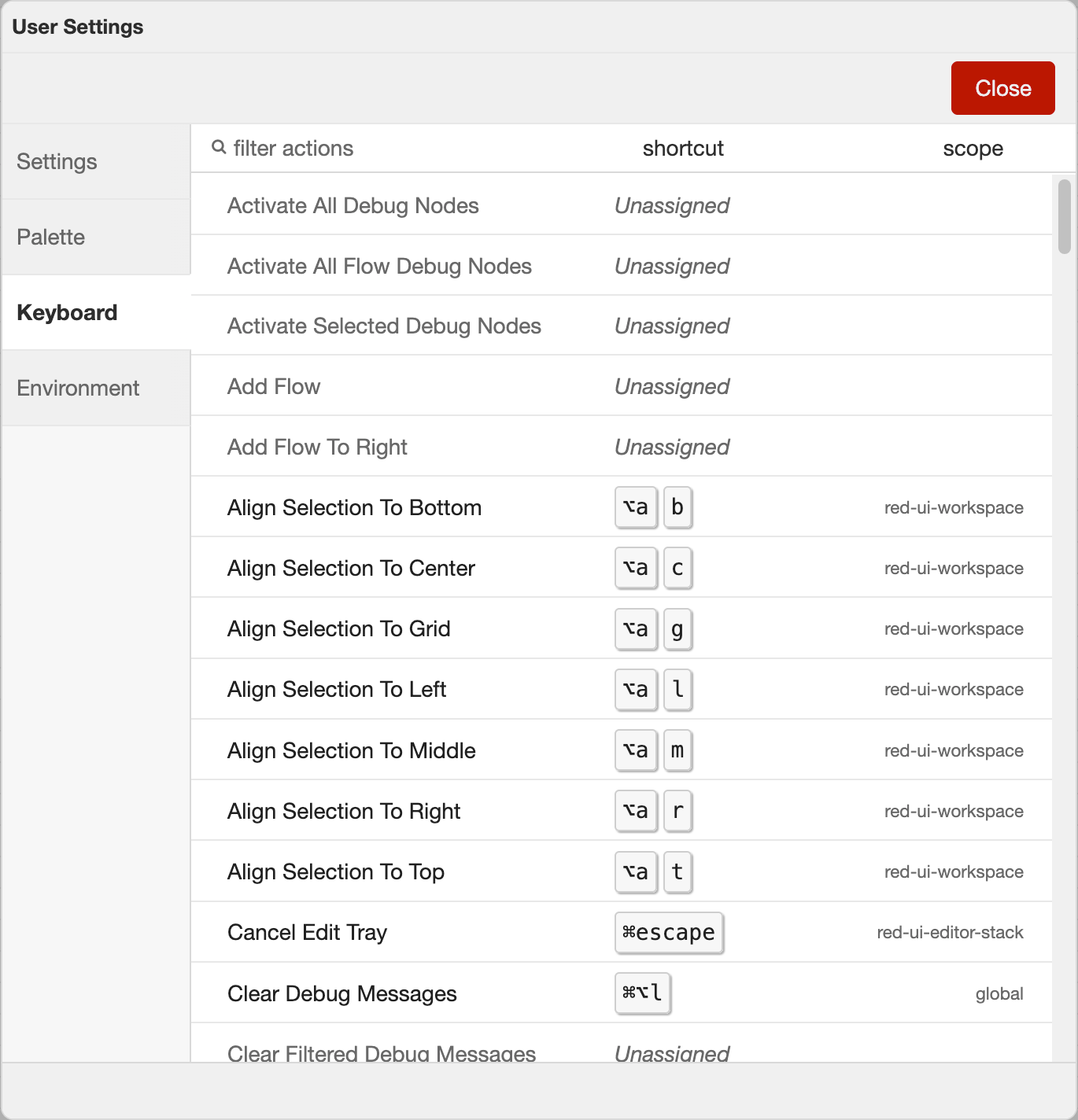
Keyboard settings
All of the actions in the editor can be assigned to keyboard shortcuts. Not all of the core actions have preassigned shortcuts.
The shortcuts can be customised in the Keyboard settings via the View -> Keyboard shortcuts menu.
This lists all of the available actions and what shortcuts are currently assigned to them.
To customise any shortcut, click on the row, enter the desired shortcut, select the scope of the shortcut then click on the tick to save the change. The reverse arrow can be used to revert the shortcut back to the default value.

Editing a shortcut
The scope of the shortcut determines what part of the editor should have focus for the shortcut to apply. There are three scope options:
global- the whole editor UIworkspace- the inner workspace areaedit dialog- any edit dialog
| Reference | |
|---|---|
| Key shortcut | Shift-? |
| Menu option | View -> Keyboard shortcuts |
| Action | core:show-keyboard-settings |
